Set up the game
- Open a game from Play online.
- Choose Teams (or Whole class), the Timer and, where offered, how many questions to play.
- Check the questions with ✏️ Edit questions. Every game starts with a sample list, so you can also play straight away.
- Press ⛶ Full screen and then ▶ Start (or New game).
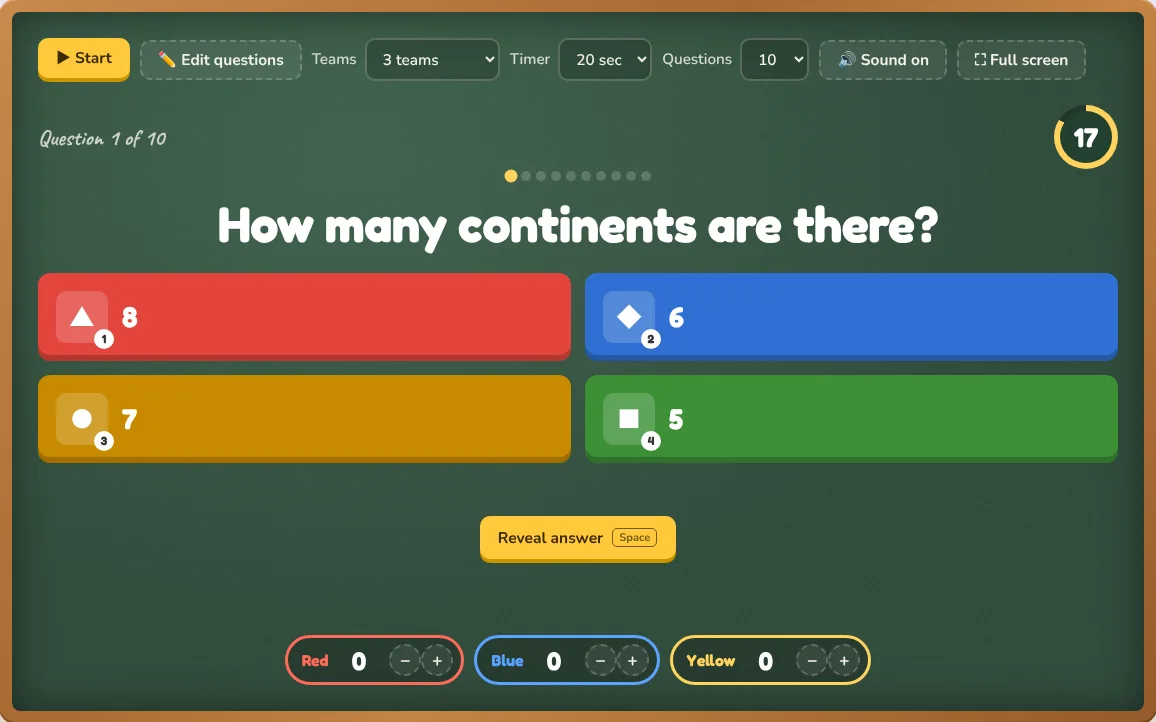
During the game
Each game explains its rules under the board, but they share the same habits:
- Everybody answers. In Quiz Show every team commits to an answer, then you reveal it and mark which teams were right.
- The teacher decides. Buttons to reveal, mark correct or wrong and move on stay with you, so you can pause and discuss any question.
- Scores and turns are shown on the board, and a podium with confetti ends the game.
- 🔊 Sound can be switched off for quiet rooms.
Keyboard and clicker shortcuts
Most games can be driven from a keyboard or presentation clicker so you can stand anywhere in the room. In Quiz Show, Space reveals the answer, 1–4 picks an answer, 1–6 marks the teams after the reveal and Enter goes on. Each game lists its own keys under the board.
Which game for which moment?
- Review before a test: Quiz Show, Jeopardy, Lucky Boxes, Team Race.
- Vocabulary and spelling: Guess the Word, Word Scramble, Memory Match, Hangman.
- Getting the class moving or talking: Would You Rather, Heads Up, Pass the Bomb.
- Sorting and thinking: Sort It, Survey Says, Mystery Picture.
Full screen and the answer list
In full screen the board grows to fill the screen and text gets bigger for the back row. The question editor always closes when you go full screen, so the answers are never projected by accident. A small site name sits in one corner; it never covers the game.
TipIf your projector shows only part of the screen, use the browser zoom (Ctrl and −, or ⌘ and − on a Mac) before going full screen.
Start a game straight from your slides
Set the questions up once, make a class link and put it in your PowerPoint. Clicking it in class opens the game with your questions and settings already loaded.