What you can do here
- Online games for the board. Quiz Show, Tic Tac Toe, Memory Match, Team Race and more. You run them on a projector or smartboard and the class plays in teams. Students need no devices.
- A live quiz on student phones. Like Kahoot: students join with a room code and answer on their own devices.
- Question sets. Hundreds of ready-made sets by grade and subject that load into any game, plus tools to import your own, write them with AI, or make math facts.
- Teacher tools. Timer, random name picker, group maker, noise meter, class points, buzzer and a classroom screen that puts them all on one board.
- Classroom game guides. Rules, variations and tips for over a hundred games you can play with no technology at all.
Your first game in three steps
- Open Play online and pick a game. Quiz Show is a good first choice because it works with any multiple-choice questions.
- Press Edit questions and choose a ready-made set, open the 📚 Question library, or paste your own list. Then press Save and play.
- Choose the number of teams and the timer, press ⛶ Full screen, and start. The answer list closes in full screen, so students never see it.
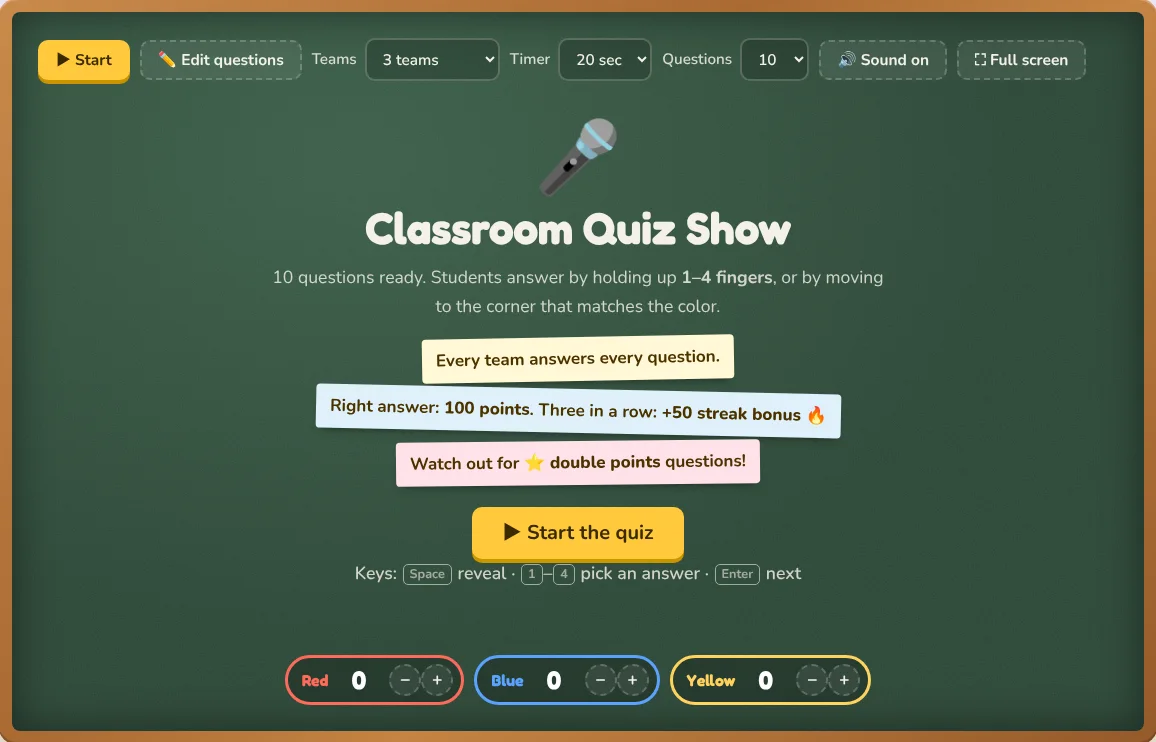
TipOpen the game on the classroom computer before the lesson. Your questions are saved in that browser, so it is ready the moment you need it.
Find a game for right now
On Classroom games, filter by grade, subject, type of game and length, or tick No prep to see only games you can start without materials. The search box understands words like “quiet”, “review” or “ESL”.
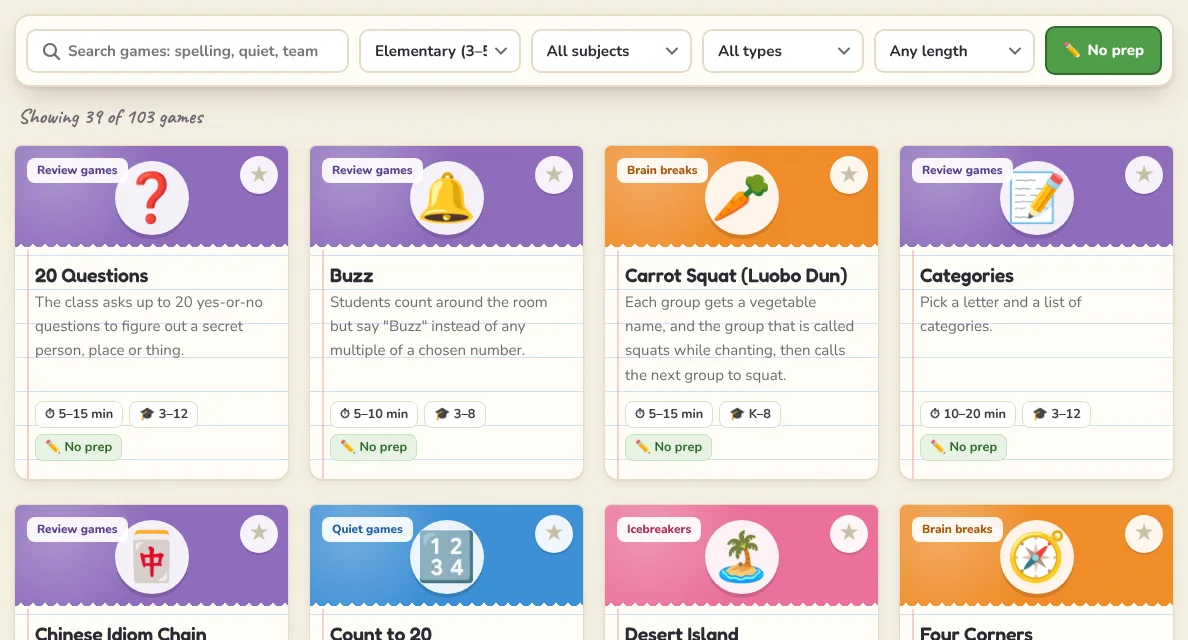
Short on ideas? Press 🎲 Surprise me in the header for a random game, or look at the Game of the day on the home page.
Save favorites for next time
Press the ★ on any game to save it. Your saved games and the games you looked at recently appear under ★ My games in the header. They are stored in this browser only, so there is nothing to sign up for, but they do not move to another computer.
Where your data lives
Class lists, scores, your question lists and favorites stay in the browser on your device. Only three features send anything to our server, and only when you use them: the live quiz, AI questions and share codes. The privacy policy explains each one.
Switch language
The whole site is available in English and Simplified Chinese. Use the 中文 button in the header to switch; you stay on the same page.