Make a share code and class link
- Open the game you want to play in class and press ✏️ Edit questions.
- Set up the questions, and choose the teams, timer and other settings the way you want them in class.
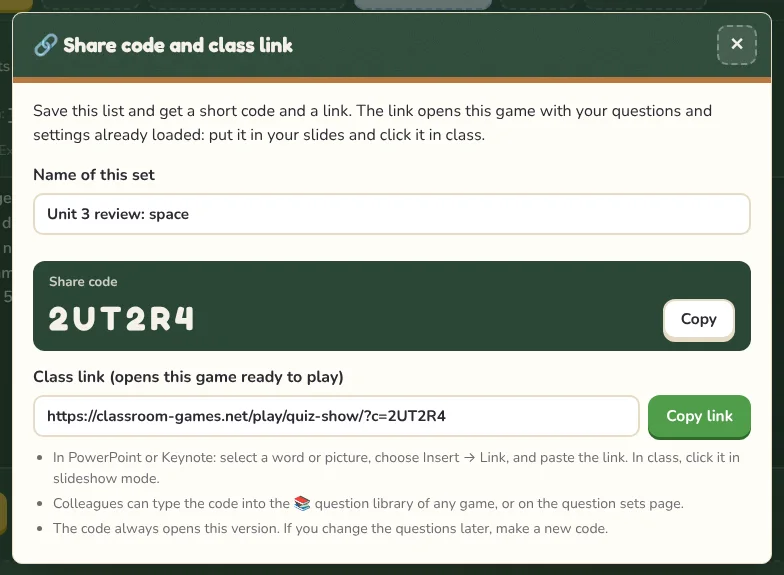
- Press 🔗 Share code & class link, give the set a name and press Make share code.
- Copy the class link. It looks like
classroom-games.net/play/quiz-show/?c=K7Q2MX.
Put the link in your slides
- PowerPoint: select a word, button or picture, choose Insert → Link (or press Ctrl+K), paste the link and press OK.
- Keynote: select the text or shape, choose Format → Add Link → Webpage and paste the link.
- Google Slides: select the text or shape, press Ctrl+K and paste the link.
- WPS Presentation: select the text or picture, choose Insert → Hyperlink and paste the link.
In class, click the link while the slideshow is running. The game opens in the browser with your questions and settings loaded and the answer list closed. Press ⛶ Full screen and start.
TipUse a big friendly button on the slide, like a picture of the game or the words “Let’s play!”, so it is easy to hit on a smartboard.
Share with colleagues
Send the six-character code. Your colleague opens any game, presses 📚 Question library and types the code under Have a share code?. The questions are converted to fit that game where possible. Codes can also be typed on the Question sets page.
Good to know
- A code always opens the version you saved. If you change the questions, make a new code and update the link.
- Codes don’t expire while they are used. A code nobody has opened for a year is deleted.
- Anyone with the code or link can see the questions, so don’t put students’ names or other private information in a shared list.