Start a room
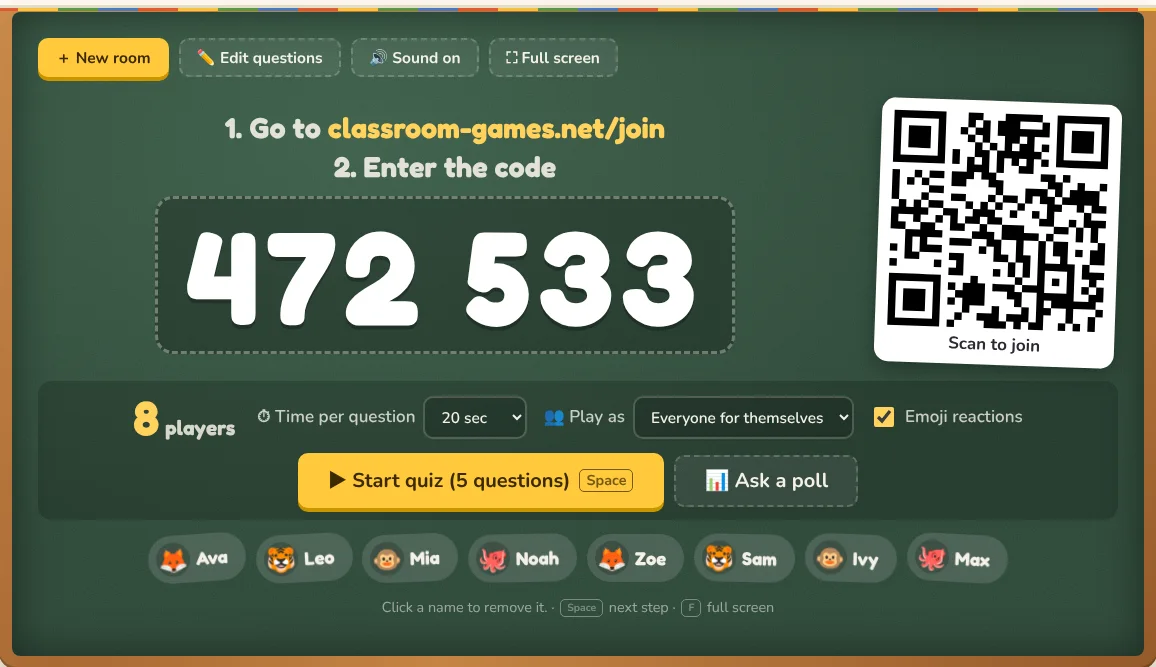
- Open Live quiz and check the questions under ✏️ Edit questions: pick a ready-made set, use the question library, or paste your own (
question | right answer | wrong | wrong). - Press + Create a room and go full screen. The board shows a room code and a QR code.
- Students open classroom-games.net/join or scan the QR code, type the code and a nickname, and pick an animal.
- When everyone is in the lobby, press ▶ Start quiz.
During the quiz
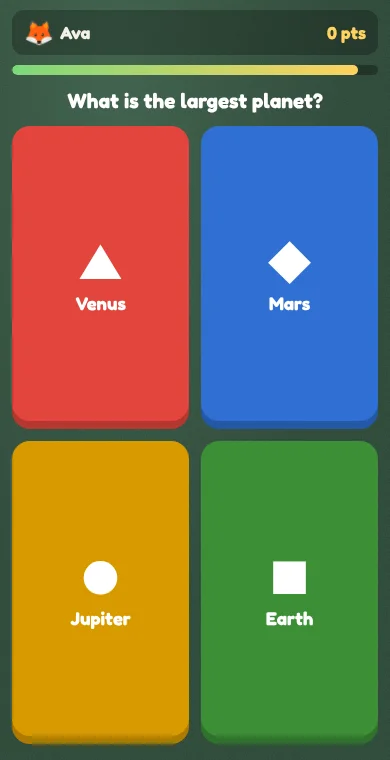
- Students tap the color and shape that matches the answer on the board. Fast, correct answers score more, and answers in a row earn a streak bonus.
- After each question the board shows how the class answered and the top five.
- Use Pick a student to choose someone to explain the answer.
- Teams: turn them on to play in up to four color teams.
- Shortcuts: Space next step, F full screen, M sound, P pick a student.
Polls and word clouds
Any time during the room, ask a quick poll or collect words for a word cloud: great for checking understanding, exit tickets or opinions.
After the quiz
The podium is revealed third, second, then first, and you can download a class report showing how every student answered. Rooms close by themselves after four hours and all names and answers are deleted.
TipNo devices today? The same questions play on one screen in the Quiz Show, where teams answer with fingers or corners.